> ## Documentation Index
> Fetch the complete documentation index at: https://docs.sub.jerrylu.app/llms.txt
> Use this file to discover all available pages before exploring further.
# Reminders
> Set up Bark renewal reminders and per-subscription notification toggles.
# Reminders
Reminders help you notice upcoming renewals before a subscription charges again. Subscription Manager sends them from its server, so you do not need to keep the web app open.
## Before you start
Renewal reminders use Bark, a free and open-source iOS push app. You only need:
* A signed-in Subscription Manager account.
* [Bark](https://apps.apple.com/app/bark-customed-notifications/id1403753865) installed on an iPhone or iPad.
* The push URL shown in Bark.
* The number of days before renewal when you want to be reminded.
Your Bark URL contains your device key. Do not publish it or share it with anyone you do not trust, because it can be used to send pushes to your device.
## Get your Bark URL
1. Download and open Bark on your iOS device.
2. Tap **Server** at the bottom of Bark.
3. Copy any example push URL from the Server page, such as `https://api.day.app/your-device-key/example`.
4. Keep the complete URL. Subscription Manager extracts the server URL and device key automatically.
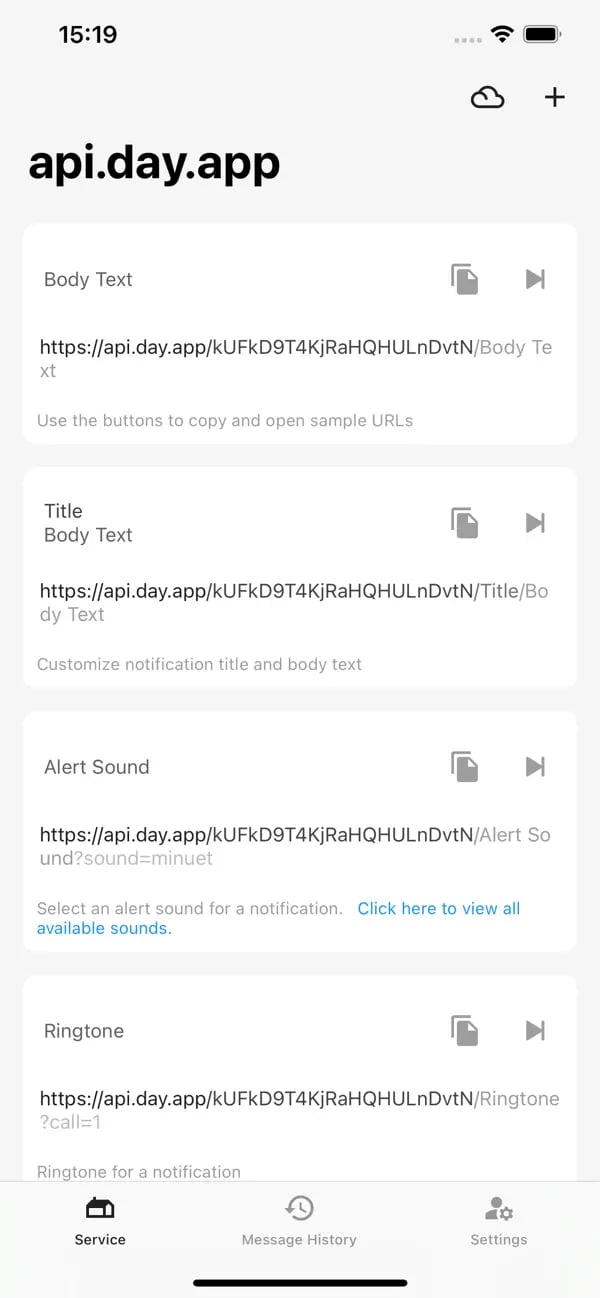 This image comes from Bark's App Store page. Copy the URL shown on your own device; do not reuse the example URL in the image.
## Configure Subscription Manager
1. Sign in to Subscription Manager.
2. Open **Settings** > **Notifications**.
3. Enable **Bark push notifications**.
4. Paste the complete Bark URL into the **Bark URL** field.
5. Check that the field is marked valid and review the detected server and device key.
6. Choose how many days before renewal to send the reminder.
7. Select **Test Push** and confirm that the message arrives on your iOS device.
8. Select **Save Settings**.
Notification settings are linked to the current account. You must be signed in before saving or testing so that the server can match subscriptions to the correct notification device.
This image comes from Bark's App Store page. Copy the URL shown on your own device; do not reuse the example URL in the image.
## Configure Subscription Manager
1. Sign in to Subscription Manager.
2. Open **Settings** > **Notifications**.
3. Enable **Bark push notifications**.
4. Paste the complete Bark URL into the **Bark URL** field.
5. Check that the field is marked valid and review the detected server and device key.
6. Choose how many days before renewal to send the reminder.
7. Select **Test Push** and confirm that the message arrives on your iOS device.
8. Select **Save Settings**.
Notification settings are linked to the current account. You must be signed in before saving or testing so that the server can match subscriptions to the correct notification device.
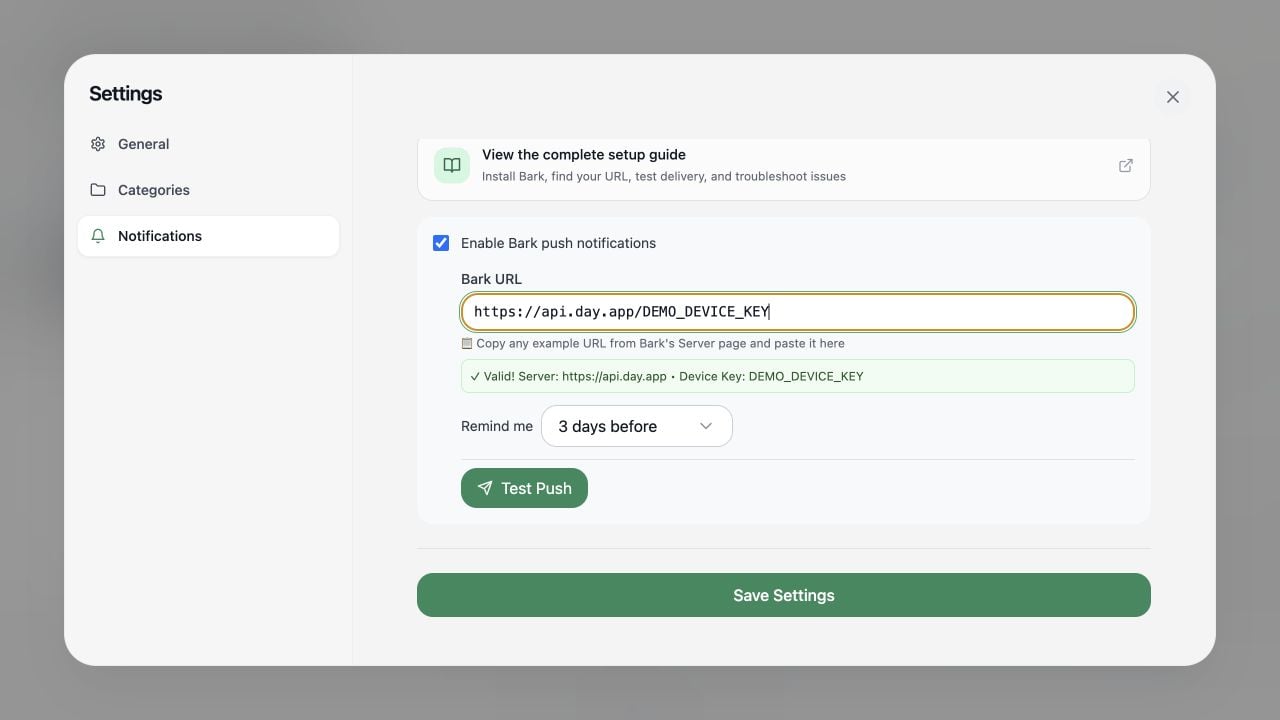 `DEMO_DEVICE_KEY` in the image is a redacted example. Paste the complete URL copied from Bark on your own device.
## Per-subscription toggles
After enabling Bark globally, you can still turn reminders on or off for each subscription when adding or editing it. Disabling one subscription does not affect the others.
## Test and troubleshoot
If reminders do not arrive:
* Confirm that the Bark URL is marked valid.
* Confirm that iOS notifications are allowed for Bark, then try an example push from Bark.
* Confirm that you are signed in and saved the notification settings.
* Confirm that notifications are enabled for the subscription.
* Confirm that the next payment date is valid and in the future.
* If you use a self-hosted Bark server, confirm that its URL is publicly reachable.
* Run **Test Push** again to distinguish a device configuration issue from a scheduled-job issue.
`DEMO_DEVICE_KEY` in the image is a redacted example. Paste the complete URL copied from Bark on your own device.
## Per-subscription toggles
After enabling Bark globally, you can still turn reminders on or off for each subscription when adding or editing it. Disabling one subscription does not affect the others.
## Test and troubleshoot
If reminders do not arrive:
* Confirm that the Bark URL is marked valid.
* Confirm that iOS notifications are allowed for Bark, then try an example push from Bark.
* Confirm that you are signed in and saved the notification settings.
* Confirm that notifications are enabled for the subscription.
* Confirm that the next payment date is valid and in the future.
* If you use a self-hosted Bark server, confirm that its URL is publicly reachable.
* Run **Test Push** again to distinguish a device configuration issue from a scheduled-job issue.